Creating an online payment link for an advance payment
- Once in a Merlin client record, click on the dropdown arrow at the side of the payments button. A new dropdown menu will appear.
- Select Request Payment.

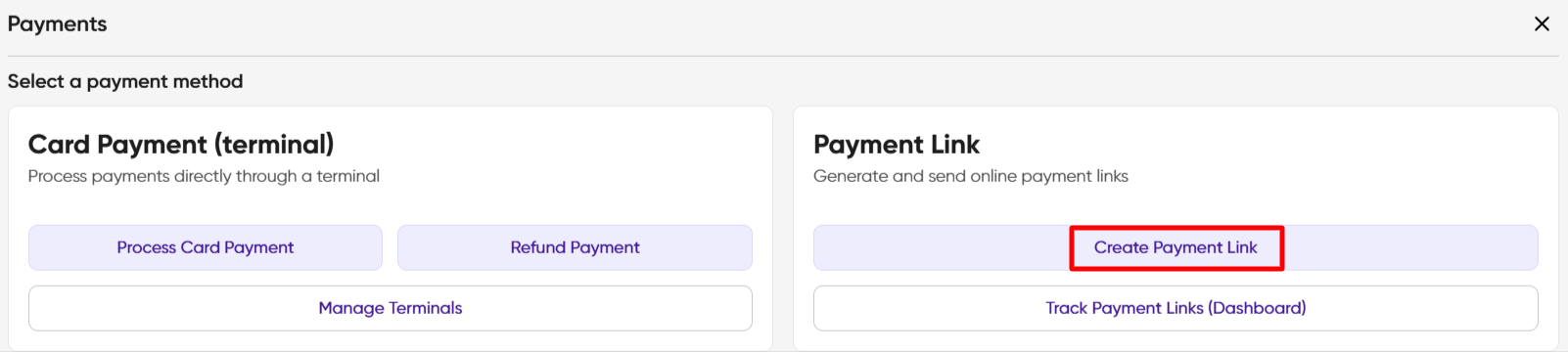
- You are then presented with the Payment screen. Select the Create Payment Link on the right-hand side.
- You are presented with the Payments window, select Payment in Advance:-
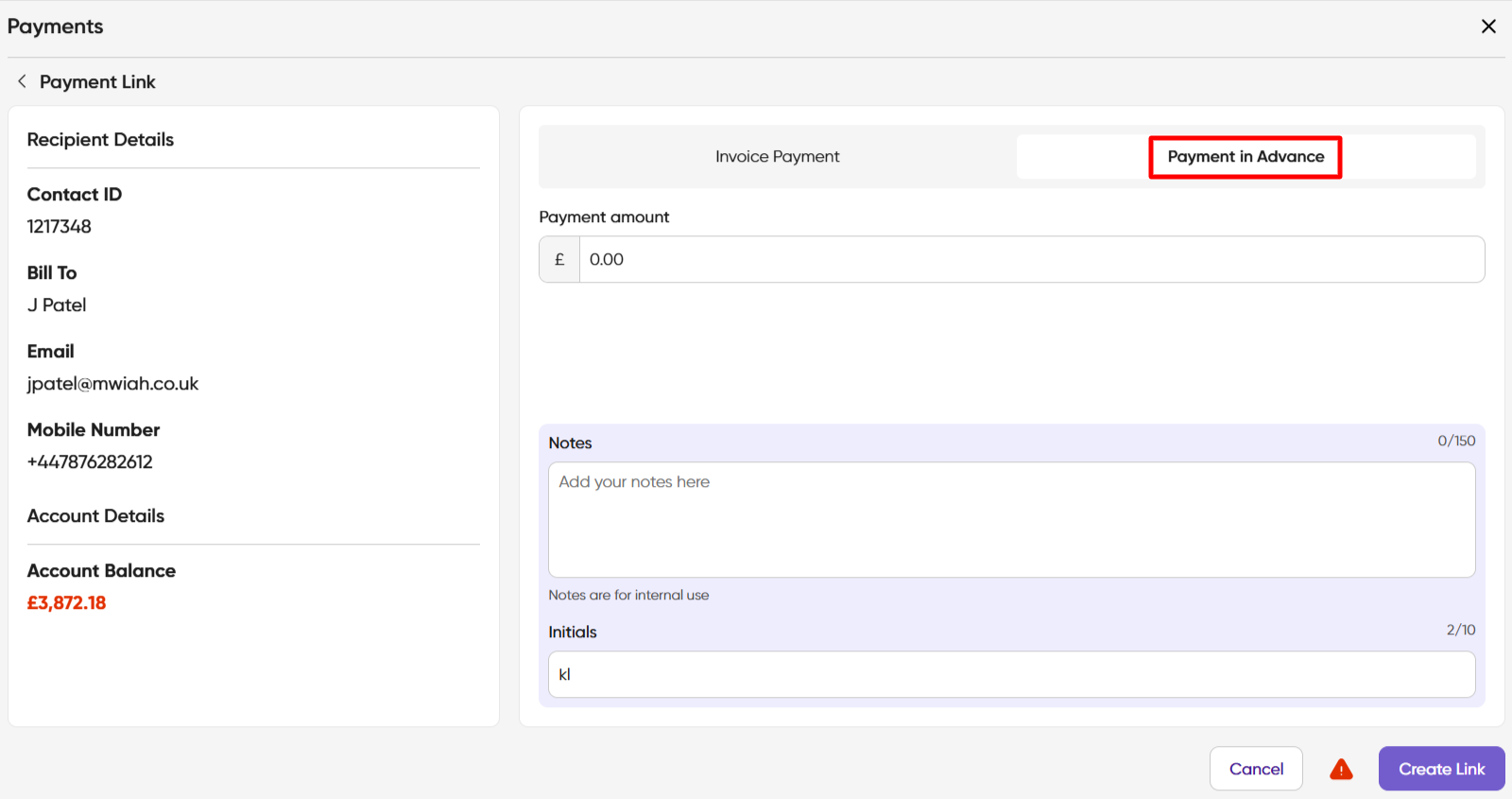
- The customer details will show, including their registered email address and mobile number.


6. Enter the required payment amount, any notes and your initials then select Create Link

7. You are now presented with the following page, showing the Payment Link. Select an Email template and/or an SMS template and click Send Email and/or Send SMS.

8. You will see a green acknowledgement flag when the email/sms has been sent.

9. Details of your payment links show on the dashboard accessed via the Payment screen (shown below).


10. You have the option of viewing the current customer or All Customers, a choice of Sites and also the status of the sent payment links.

11. Finally there are two symbols to the right-hand side which allows the user to copy the link or delete the link as required.