Taking an Advance Payment via the Point of Sale Payments Menu
- Once in a Merlin client record, click on the dropdown arrow at the side of the payments button. A new dropdown menu will appear.
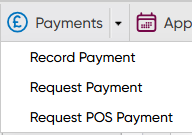
- Select Request POS Payment.
- You are presented with the Payment screen, showing the customer details. Select the Payment in Advance button.
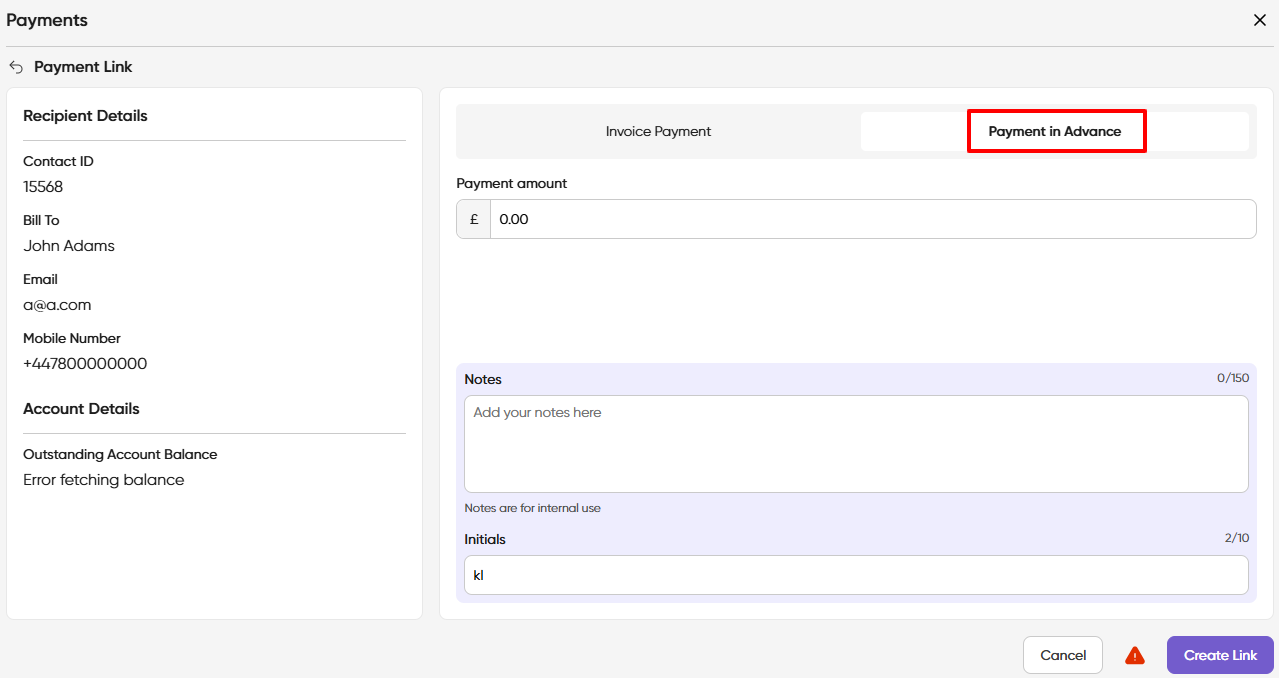
4. Enter the required payment amount, any notes and your initials then select Create Link

5. You are now presented with a Payments box - Card Payment (terminal)
 6. By default the assumption is the customer is present, if the cardholder is not present please click the slider button which will set the terminal into "cardholder not present" mode:
 7. If you have more than one terminal ensure you select the correct one from the dropdown options.
8. Now select Request Payment to send the payment amount automatically to the terminal:  9. The terminal screen will display and indicate to you the stages of payment processing. Once the payment is completed you will see the following notification. If it is declined you may have the option to retry or ask your client if they have an alternative payment method.
If you require a receipt select Send Confirmation Email.
10. Once the payment is received the customer's Merlin account will be automatically updated as paid and details will be recorded in the Daily Cash Report.

11. Once the payment is received the customer's Merlin account will be automatically updated as paid and details will be recorded in the Daily Cash Report.