Creating an online payment link for an outstanding balance
- Firstly, select the client record in Merlin you wish to send a payment link to.
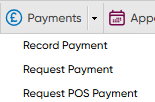
- From the reception screen select the downward arrow at the side of the 'Payments' button and click on 'Request Payment'
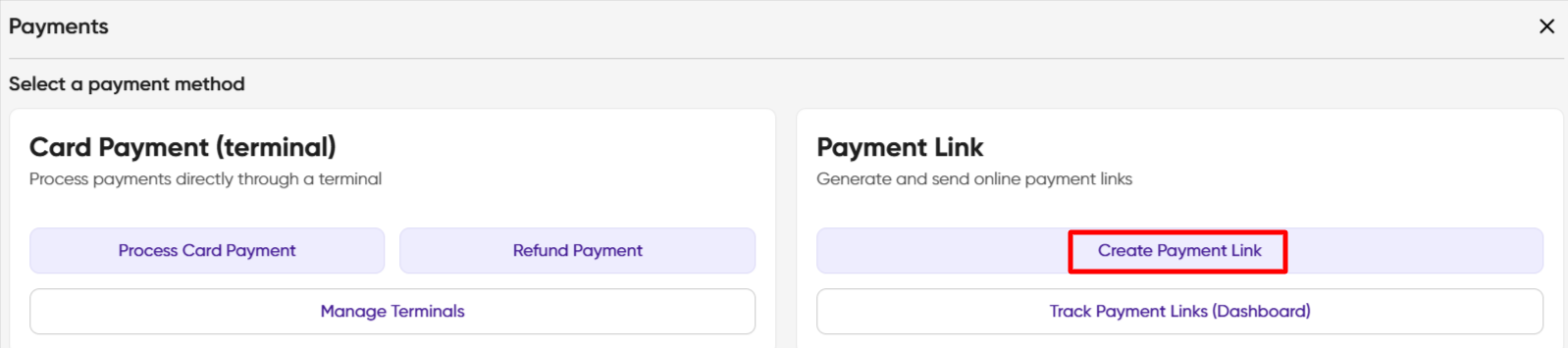
- The Payments window displays, select Create Payment Link
- You are presented with the Payments window:-
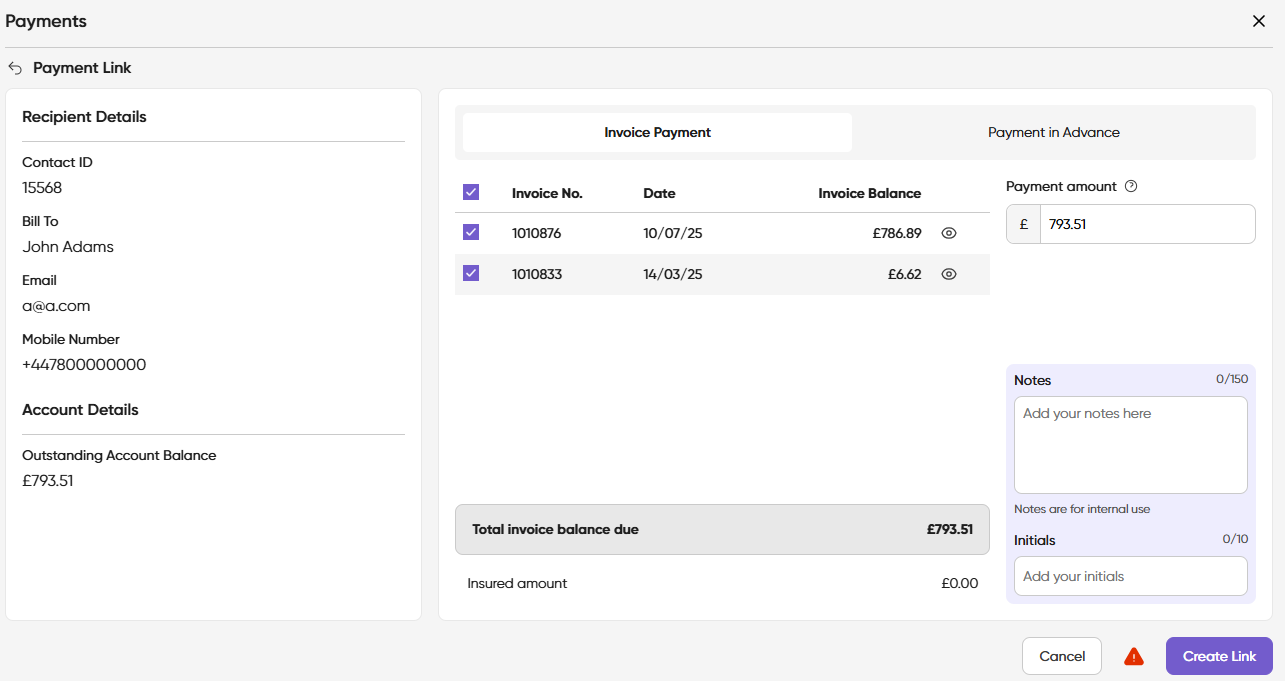
- The client details will pre-populate the form. Check that you have the correct details for the client by checking the details displayed in ‘Contact ID’ and ‘Bill to’.
- By default all outstanding invoices will be selected.
- Select the invoices you would like to request payment against, using the tick boxes. The default view will be that all invoices will automatically be selected. If you record insurance against line items in Merlin, these will automatically be calculated, so you can quickly understand which items are covered by insurance and will show at the bottom of the screen as Insured amount.
- Total invoice balance due will display the total balance of the invoices selected
- Insured and uninsured - please note that these calculations do not consider any payments that have already been made against invoices. They are presented to give guidance on items that are covered by insurance whilst taking a payment
- Uninsured amount – Total of any invoice line items that are not recorded as covered by insurance automatically calculated at an invoice level
- Insured amount - Total of any invoice line items that are recorded as covered by insurance in Merlin, automatically calculated at an invoice level
NB The Payment amount can be amended if required. 
8. If you need to check the invoice details then you can select the 'eye' at the side of the Invoice Balance. 
9. Add any internal notes, input your initials and select Create Link. NB initials are mandatory.
10. You are now presented with a Payments box. Select a communications method, either SMS, email or both, or send via URL link, by clicking on the copy icon.
11. Select your required Email/SMS templates by selecting the dropdown arrow to show your options. NB only Personal mobile numbers will pre-populate the Client Mobile Number field, if they are already recorded in the client Merlin record. We only populate ‘Personal mobile’ number, no other mobile numbers are pulled through into the payment record.

12. Now select Send Email, Send SMS or both.
13. You will receive a pop up to confirm the link has been sent, now select close at the bottom of the screen